500 Internal Server Error: How to Diagnose, Fix, and Prevent It (Captain Cloud Guide)
A 500 Internal Server Error can disrupt your website’s uptime and harm user trust. Learn how to resolve it with TBX Host’s expert tips: check server logs, adjust permissions, disable faulty plugins, and leverage our 24/7 support. Discover how to prevent future errors and keep your site running smoothly on our reliable UK hosting infrastructure.
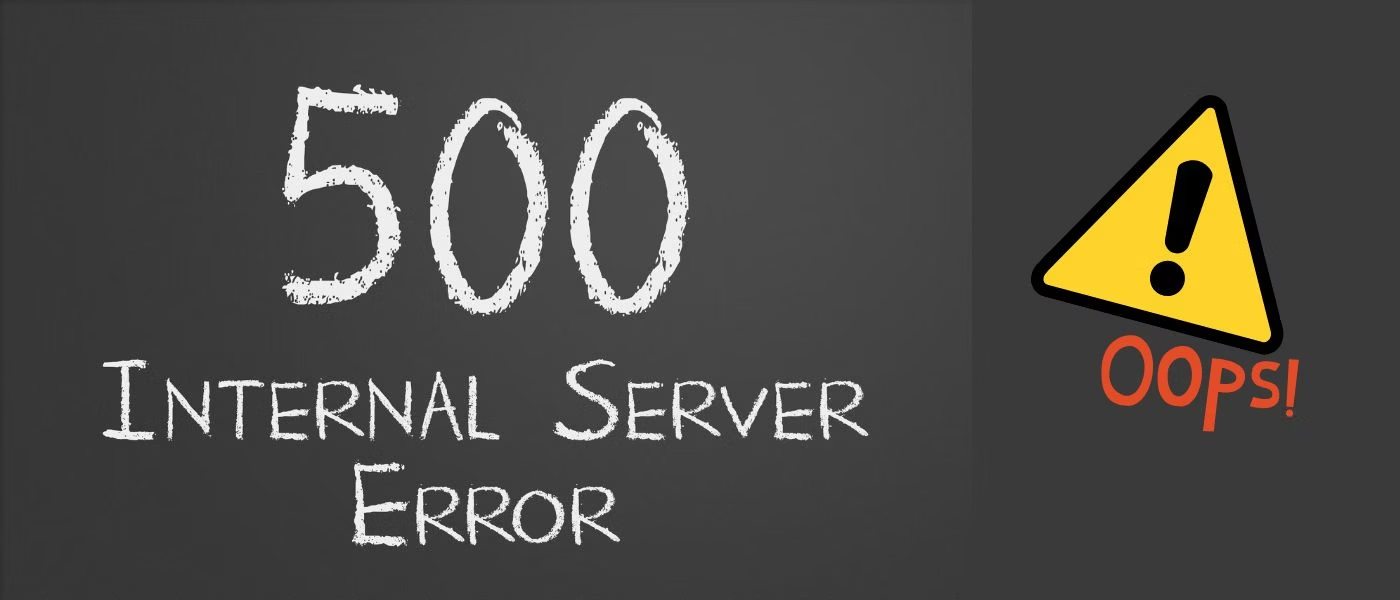
The 500 Internal Server Error is a frustrating HTTP status code that signals an unexpected server-side problem. For Captain Cloud customers, this error often arises from misconfigurations, coding issues, or resource limits on your hosting environment. Left unresolved, it can lead to downtime, lost revenue, and SEO setbacks. In this guide, tailored for Captain Cloud users, we’ll break down actionable steps to diagnose, fix, and prevent this critical error using tools and support available on our platform.
What Causes a 500 Internal Server Error?
While the error is vague by design, common triggers on Captain Cloud servers include:
-
Misconfigured Server Files
-
Broken
.htaccessorweb.configrules (common in WordPress or Joomla). -
Incorrect PHP version settings in cPanel.
-
-
Faulty Scripts or Plugins
-
Syntax errors in PHP/Python scripts.
-
Plugin conflicts in CMS platforms like WordPress.
-
-
File Permission Issues
-
Incorrect
chmodsettings (e.g., files not set to 644 or folders to 755).
-
-
Database Errors
-
Corrupted MySQL/MariaDB tables.
-
Invalid credentials in
wp-config.php(WordPress).
-
-
Resource Limits on Captain Cloud Plans
-
Exceeding CPU/RAM allocations on shared hosting.
-
Hitting process limits during traffic spikes.
-
-
SSL/TLS Certificate Problems
-
Expired certificates or mismatched domain names.
-
Step-by-Step Fixes for Captain Cloud Users
1. Start with Basic Troubleshooting
-
Refresh the Page: Temporary server glitches may resolve automatically.
-
Clear Browser Cache: Stale data can persist errors.
-
Check Captain Cloud Server Status: Visit our Status Page for real-time updates.
2. Review Captain Cloud Error Logs
Locate error logs via:
-
cPanel: Navigate to Metrics > Errors for a user-friendly log.
-
SSH Access: Use commands like
tail -f /var/log/apache2/error.log(Apache) ornginx/error.log(Nginx).
Example Log Entry:
PHP Fatal error: Allowed memory size exhausted in /home/domainuser/public_html/wp-content/plugins/example-plugin.php
3. Adjust File Permissions in cPanel
Captain Cloud’s File Manager simplifies permission fixes:
-
Right-click the file/folder > Change Permissions.
-
Set files to 644 and folders to 755.
-
For writeable directories (e.g.,
uploads), use 755 – never 777.
4. Disable Plugins/Themes (WordPress)
-
Rename the Plugins Folder: Via File Manager, change
/wp-content/pluginsto/wp-content/plugins_offto deactivate all plugins. -
Use Captain Clouds Staging Tool: Test fixes safely in a cloned environment.
5. Repair Databases
-
phpMyAdmin: Navigate to Databases > phpMyAdmin in cPanel.
-
Select your database > Check Tables > Repair.
-
Captain Cloud Automated Backups: Restore a recent backup if tables are irreparable.
6. Increase PHP Memory Limits
Edit php.ini or .user.ini via File Manager:
ini
Copy
memory_limit = 256M
max_execution_time = 300
Need help? Contact Captain Cloud for PHP adjustments.
7. Fix .htaccess/web.config Files
-
Rename
.htaccessto.htaccess_oldand regenerate it via WordPress Settings > Permalinks. -
For ASP.NET users, validate
web.configrules with our support team.
8. Check SSL Certificate Validity
-
In cPanel, navigate to Security > SSL/TLS Status.
-
Request a free Let’s Encrypt SSL renewal if expired.
9. Upgrade Your Captain Cloud Plan
Persistent resource limits? Consider:
-
Business Hosting: Higher CPU/RAM allocations.
-
VPS/Cloud Hosting: Scalable resources for traffic surges.
10. Contact Captain Cloud Support
If the error persists, our UK-based team is available 24/7 via:
-
Live Chat: Instant assistance in your dashboard.
-
Ticket Support: Detailed troubleshooting with error logs.
Preventing 500 Errors on Captain Cloud
-
Enable Auto-Updates
-
Use Captain Cloud’s Softaculous to auto-update WordPress/core plugins.
-
-
Monitor Resources
-
Track CPU/RAM usage in cPanel > Resource Usage.
-
Set up alerts via Advanced Monitoring (available on VPS/Cloud plans).
-
-
Use Staging Environments
-
Test plugin updates or code changes in Captain Cloud’s staging area before deploying live.
-
-
Schedule Regular Backups
-
Activate Backup Pro in cPanel for daily/weekly backups.
-
-
Optimize Server Configuration
-
Request our team to tune PHP-FPM or Nginx settings for high-traffic sites.
-
SEO Impact of 500 Errors
Frequent 500 errors harm your site’s SEO by:
-
Increasing Crawl Errors: Googlebot may deindex pages.
-
Reducing Rankings: Downtime lowers site authority.
-
Damaging User Experience: High bounce rates hurt SEO performance.
Captain Cloud Tools to Monitor SEO Health:
-
Integrated Cache Solutions: Turbo Cache (LiteSpeed) speeds up page loads.
-
Free CDN: Reduce server strain with our global content delivery network.
FAQs for Captain Cloud Customers
Q: Will upgrading my Captain Cloud plan fix 500 errors?
A: If caused by resource limits (CPU/RAM), upgrading to VPS or Cloud Hosting often resolves the issue.
Q: How do I access error logs without cPanel?
A: Contact our support team – we’ll provide logs via email or dashboard.
Q: Can TBX Host help debug custom code?
A: While we focus on server-side fixes, our team can recommend trusted developers for code reviews.
Table of Contents
Share this article
Get More Insights
Subscribe to our newsletter for weekly cloud tips.
Related Articles
View All →
Domain Expiration Errors: How Lapsed Registrations Cripple Your Business and Strategies to Avoid
A lapsed domain registration can shut down websites, disrupt emails, and damage brand reputation. Learn why domains expire, the risks of downtime and cybersquatting, and actionable steps to automate renewals, monitor deadlines, and recover expired domains. Protect your online presence now.

The Power of Branded Email Addresses: Elevate Your Brand
Branded email addresses offer several benefits for businesses and professionals, enhancing credibility, professionalism, and brand recognition
Hosting Types for Techies
For tech-savvy individuals and professionals, choosing the right web hosting solution is crucial for optimizing performance, ensuring flexibility, and leveraging advanced features. Here’s a detailed look at various hosting types that cater specifically to techies.
Ready to optimize your hosting?
Explore our enterprise-grade hosting plans designed for speed, security, and scale.