Mastering WordPress Staging and Toolkit: A Comprehensive Guide for Secure Site Management
WordPress Staging is a copy of your live website where you can test new plugins, themes, or updates without affecting the actual site.
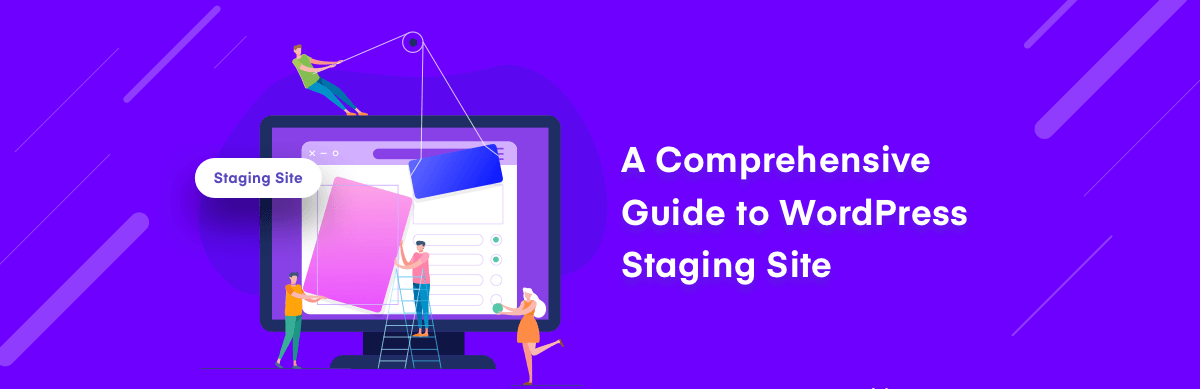
The Ultimate Guide to WordPress Staging and WordPress Toolkit
Introduction
Managing a WordPress site can be complex, especially when dealing with updates, new features, or design changes. This is where WordPress Staging and the WordPress Toolkit come into play. These tools help streamline the process, ensuring a smooth and error-free website management experience.
What is WordPress Staging?
WordPress Staging is a copy of your live website where you can test new plugins, themes, or updates without affecting the actual site. This sandbox environment is essential for developers and website owners who want to ensure changes won't disrupt the live site.
Benefits of WordPress Staging
- Risk-Free Testing: Test changes in a secure environment.
- No Downtime: Your live site remains unaffected.
- Easy Rollback: Revert changes easily if needed.
Setting Up WordPress Staging
To set up a WordPress staging site, you can use plugins like WP Staging or hosting services that offer staging environments. Here's a simple process:
- Backup Your Site: Always start by backing up your live site.
- Choose a Plugin or Host: Select a method for creating a staging site.
- Create the Staging Site: Follow the plugin or host instructions to duplicate your site.
What is WordPress Toolkit?
The WordPress Toolkit is a management interface that simplifies handling multiple WordPress installations. It offers features such as site management, updates, backups, and security enhancements all from a single dashboard.
Key Features of WordPress Toolkit
- Centralized Management: Manage all your WordPress sites from one place.
- Automated Updates: Keep your plugins and themes updated automatically.
- Security Scanning: Identify and fix security issues quickly.
Using WordPress Toolkit
To make the most of the WordPress Toolkit, follow these steps:
- Access the Toolkit: Typically available through your hosting control panel.
- Add Your Sites: Link your WordPress installations to the toolkit.
- Manage and Monitor: Use the toolkit's features to manage updates, backups, and security.
Conclusion
Leveraging WordPress Staging and the WordPress Toolkit can significantly enhance your website management process. By testing changes safely and managing multiple sites efficiently, you can ensure your WordPress sites run smoothly and securely.v
Table of Contents
Share this article
Get More Insights
Subscribe to our newsletter for weekly cloud tips.
Related Articles
View All →
How to Find and Fix 404 Errors on Your Website
There are many platforms designed to help website owners quickly identify broken links on a website.

Demystifying Web Hosting: A Comprehensive Guide for Beginners
In the vast landscape of the internet, web hosting serves as the foundation upon which websites are built and thrive.
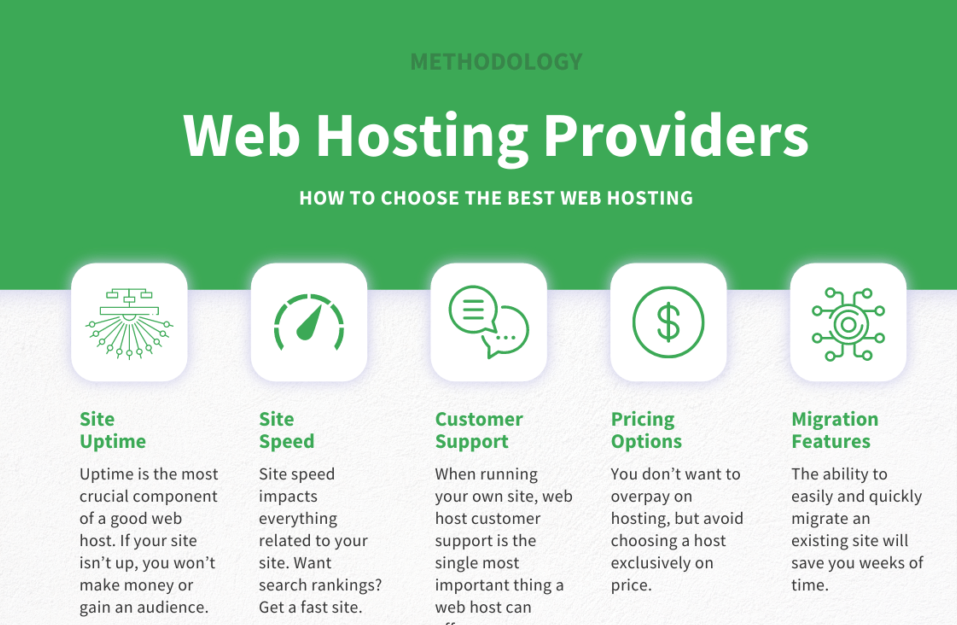
Top Reasons to Choose Our Web Hosting Company for Reliable and Secure Website Performance
At Tbx Host we are at your door step to deliver, it's important to highlight the unique features, benefits, and value propositions that set you apart from the competition.
Ready to optimize your hosting?
Explore our enterprise-grade hosting plans designed for speed, security, and scale.