How to Troubleshoot Website Downtime After Migration
Did your website go down after migration? Don’t panic—common issues like DNS delays, broken links, or server misconfigurations often cause downtime. This guide reveals step-by-step troubleshooting tips to diagnose and resolve post-migration crashes, ensuring your site comes back online quickly. Learn how to fix database errors, SSL issues, and DNS problems like a pro.

Website migration—whether switching hosts, changing domains, or upgrading servers—should improve performance. But if your site crashes immediately after migration, you could face:
Lost traffic & revenue
SEO ranking drops
Frustrated users
Why Websites Crash After Migration
Before diving into fixes, understand the most common culprits:
1. DNS Propagation Delays
-
DNS changes can take up to 48 hours to fully propagate.
-
Visitors may see the old site while others see errors.
2. Incorrect File Paths or Broken Links
-
Absolute URLs (e.g.,
http://oldsite.com/images/logo.png) break when moved. -
Missing
.htaccessor misconfigured redirects cause 404 errors.
3. Database Connection Errors
-
Wrong database credentials in
wp-config.php(WordPress). -
Corrupted SQL data during transfer.
4. SSL Certificate Issues
-
Certificate not reinstalled on the new server.
-
Mixed content errors (HTTP/HTTPS conflicts).
5. Server Configuration Problems
-
PHP version mismatch.
-
Missing modules (e.g.,
mod_rewrite).
6. Caching Conflicts
-
Old cache files referencing the previous server.
-
CDN (Cloudflare) still serving outdated content.
Step-by-Step Troubleshooting Guide
Step 1: Check DNS Propagation
Symptoms:
-
Some users see the site, others don’t.
-
"Site Not Found" or "Server IP Not Found" errors.
How to Fix:
Verify DNS propagation using:
-
dig +short A yourdomain.com(Linux/Mac)
Flush local DNS cache: -
Windows:
ipconfig /flushdns -
Mac/Linux:
sudo dscacheutil -flushcache
Temporarily override DNS (for testing): -
Edit
hostsfile to point to the new server IP.
Step 2: Verify File and Database Integrity
Symptoms:
-
Blank pages.
-
"Error establishing a database connection."
How to Fix:
Check wp-config.php (WordPress):
php
Copy
Download
define('DB_NAME', 'correct_database_name');
define('DB_USER', 'correct_username');
define('DB_PASSWORD', 'correct_password');
define('DB_HOST', 'localhost'); // Or new server’s DB host
Re-import database if corrupted:
bash
Copy
Download
mysql -u username -p database_name < backup.sql
Search-replace old URLs (if domain changed):
-
Use Better Search Replace (WordPress plugin).
-
Or run:
sql
Copy
Download
UPDATE wp_options SET option_value = replace(option_value, 'http://old.com', 'http://new.com');
Step 3: Fix SSL Certificate Issues
Symptoms:
-
"Not Secure" warnings.
-
Mixed content errors (broken padlock icon).
How to Fix:
Reinstall SSL certificate:
-
Use Let’s Encrypt (cPanel/Plesk).
-
Verify via SSL Labs.
Force HTTPS in.htaccess:
apache
Copy
Download
RewriteEngine On
RewriteCond %{HTTPS} off
RewriteRule ^(.*)$ https://%{HTTP_HOST}%{REQUEST_URI} [L,R=301]
Update hardcoded HTTP links:
-
Run a full-site search for
http://.
Step 4: Resolve Server Misconfigurations
Symptoms:
-
500 Internal Server Errors.
-
PHP warnings/errors.
How to Fix:
Check PHP version compatibility:
-
WordPress requires PHP 7.4+.
-
Change in cPanel or
.htaccess:apache
Copy
Download
AddHandler application/x-httpd-php74 .php
Enable mod_rewrite:
-
Run:
bash
Copy
Download
sudo a2enmod rewrite
sudo systemctl restart apache2
Verify file permissions:
-
Folders: 755
-
Files: 644
-
wp-config.php: 600
Step 5: Clear Caching Conflicts
Symptoms:
-
Stuck on old site version.
-
Missing recent updates.
How to Fix:
Purge all caches:
-
WordPress: WP Rocket, W3 Total Cache.
-
CDN: Cloudflare, BunnyCDN.
Disable OPcache (if PHP errors persist):
ini
Copy
Download
opcache.enable=0
Advanced Fixes for Stubborn Issues
1. Debugging WordPress (Enable WP_DEBUG)
Add to wp-config.php:
php
Copy
Download
define('WP_DEBUG', true);
define('WP_DEBUG_LOG', true);
define('WP_DEBUG_DISPLAY', false);
Check /wp-content/debug.log for errors.
2. Checking Apache/Nginx Error Logs
-
Apache:
/var/log/apache2/error.log -
Nginx:
/var/log/nginx/error.log
3. Testing with Default Theme/Plugins
-
Switch to Twenty Twenty-One theme.
-
Disable all plugins, then re-enable one by one.
Preventing Downtime in Future Migrations
1. Pre-Migration Checklist
Backup everything (files + database).
Test new server environment (PHP, MySQL versions).
Use a staging site before going live.
2. Post-Migration Best Practices
Monitor for 48 hours (UptimeRobot).
Update Google Search Console (if domain changed).
Inform users of temporary issues.
Table of Contents
Share this article
Get More Insights
Subscribe to our newsletter for weekly cloud tips.
Related Articles
View All →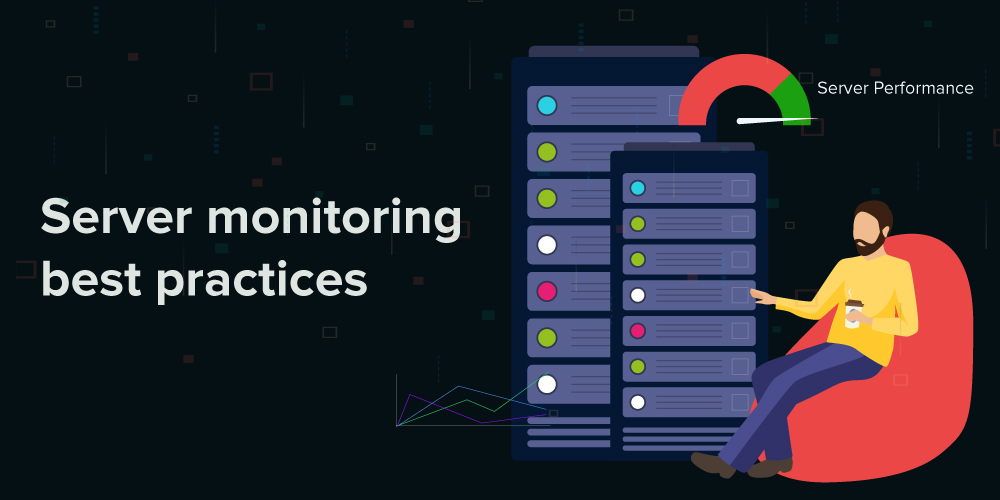
What Is Server Monitoring? Top Tools and Techniques for Optimal Server Performance
By continuously tracking the performance, health, and security of servers, businesses can prevent downtime, identify issues early, and optimize overall system performance.

customer satisfaction checklist
Delighting customers goes beyond satisfying their basic needs and expectations; it involves exceeding their expectations, providing exceptional experiences, and building long-term relationships.
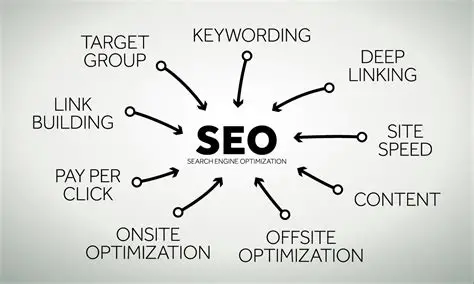
SEO Content Strategy: The Blueprint for Organic Growth
Discover why SEO and content strategy are no longer separate departments. As we approach 2026, search engines rely heavily on user intent and content depth. Learn how to build a data-driven SEO content strategy that utilizes topic clusters, semantic SEO, and user intent to rank higher, generate leads, and secure long-term organic growth.
Ready to optimize your hosting?
Explore our enterprise-grade hosting plans designed for speed, security, and scale.